Content for a Digital Screen: What to Show and How to Prepare It
Key takeaways
- ✦Content for a digital screen should be built in portrait 9:16 at 4K (3840×2160) so it fills a VACANT screen edge to edge with no black bars.
- ✦Looping video on a USB stick is the most reliable playback; a laptop over HDMI suits live presentations; the cloud CMS is best for remote, multi-screen updates.
- ✦Export MP4 (H.264) for video and PNG or JPG for stills — the Android 11 player on each VCNT SL1 screen handles these without extra software.
- ✦Big text, high contrast and motion in the first seconds are what make a message readable from across a busy room at 3000 nits.
- ✦Prepare and test your content on the screen before doors open; VACANT screens are plug-and-play from USB, HDMI or the cloud.
VACANT provides digital screen rental in Riga — 65-inch 4K screens for events, exhibitions and conferences from €30/day.
Why content for a digital screen is what makes or breaks your display
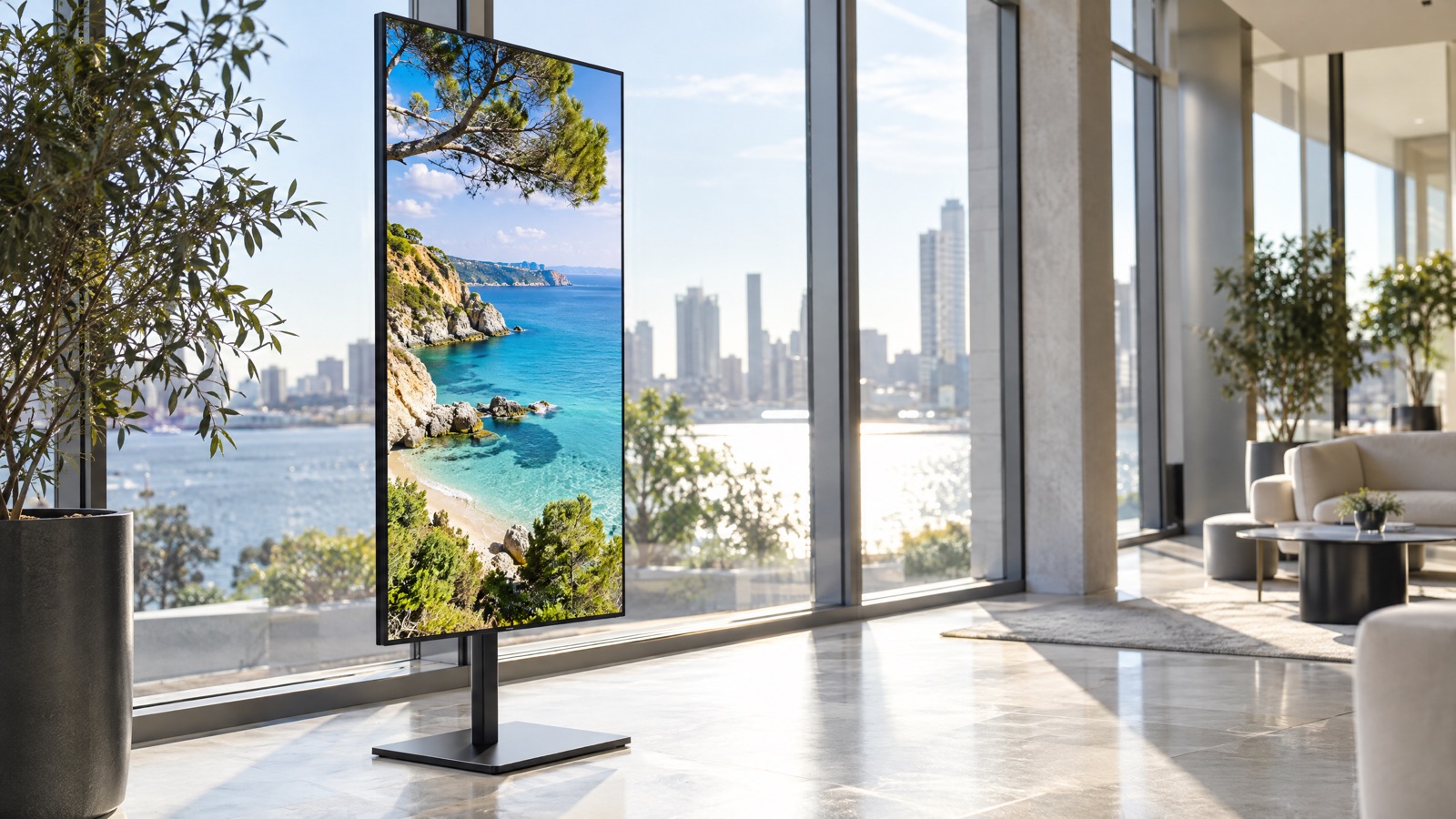
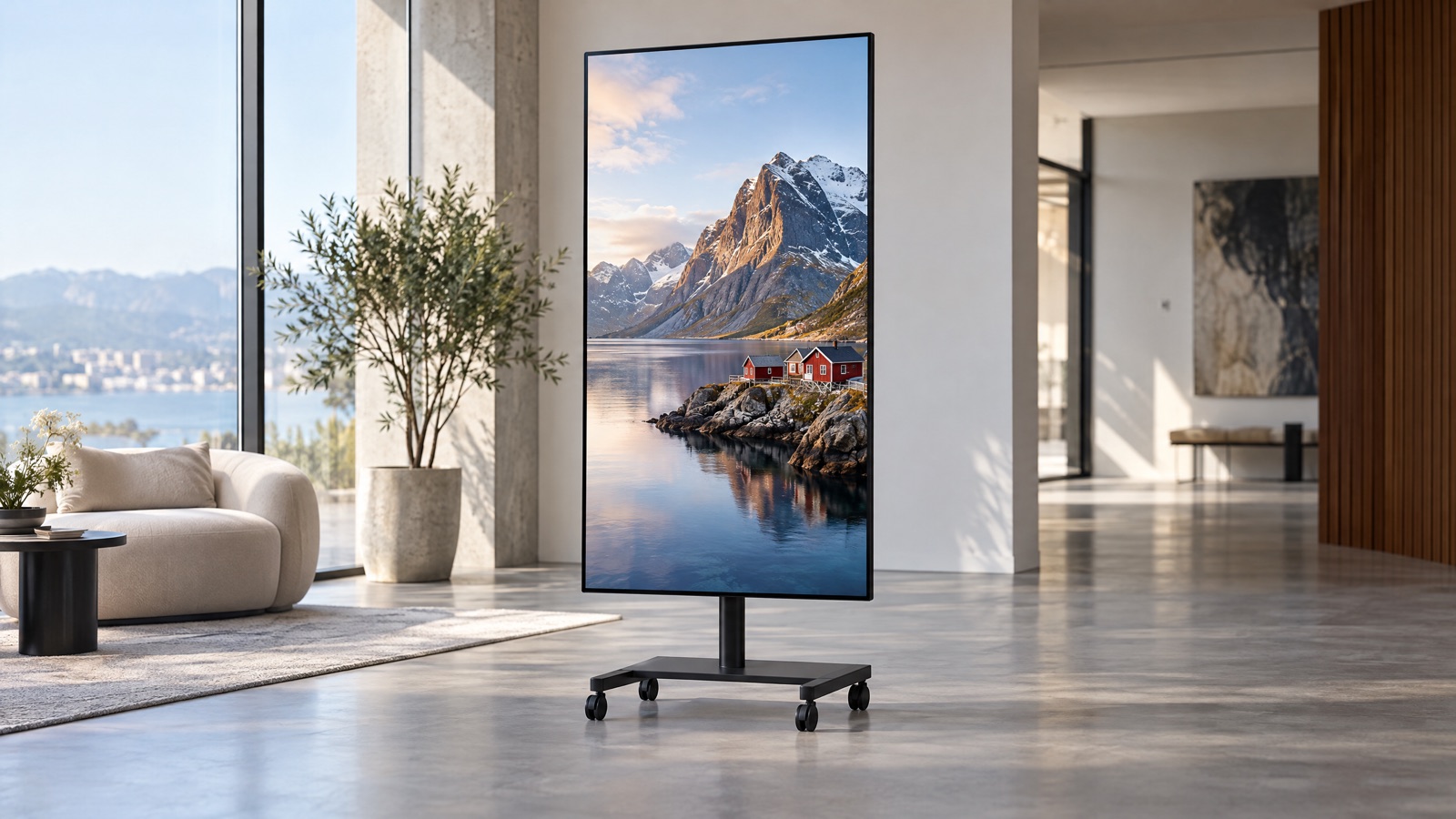
Content for a digital screen is what separates a display people stop for from an expensive glowing rectangle nobody reads. The hardware does its part — a bright, sharp panel at eye level in a busy room — but the file you load decides whether a passer-by gets your message in the two seconds they look at it. VACANT rents 65-inch (165 cm) 4K portrait screens in Riga, and this guide covers the half of the job that happens before the screen is switched on: what to show, the right format and resolution, the file types that just work, and the design choices that keep a message legible from across the hall.
Good hardware still needs the right file
A 4K screen will faithfully display whatever you give it, including a blurry logo stretched the wrong way or a slide of tiny grey text. The most common disappointment is not the panel but a file built for a laptop and dropped onto an upright screen, where it sits in the middle framed by black bars. Prepare the content for the screen it will actually run on and the same hardware suddenly looks twice as good.
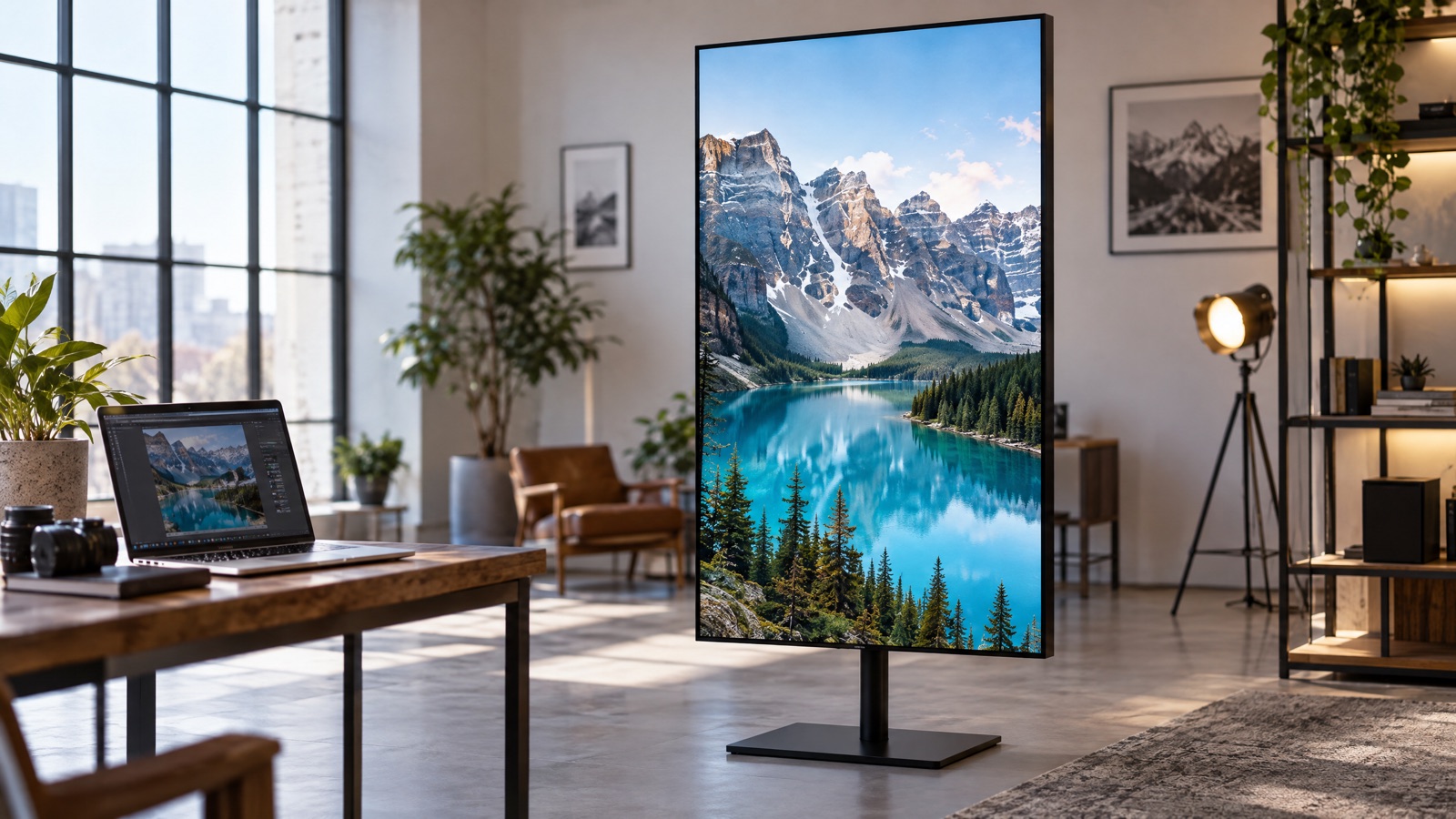
A screen is only ever as good as the file you load into it — and a well-prepared 9:16 clip makes even a single display look like a production.
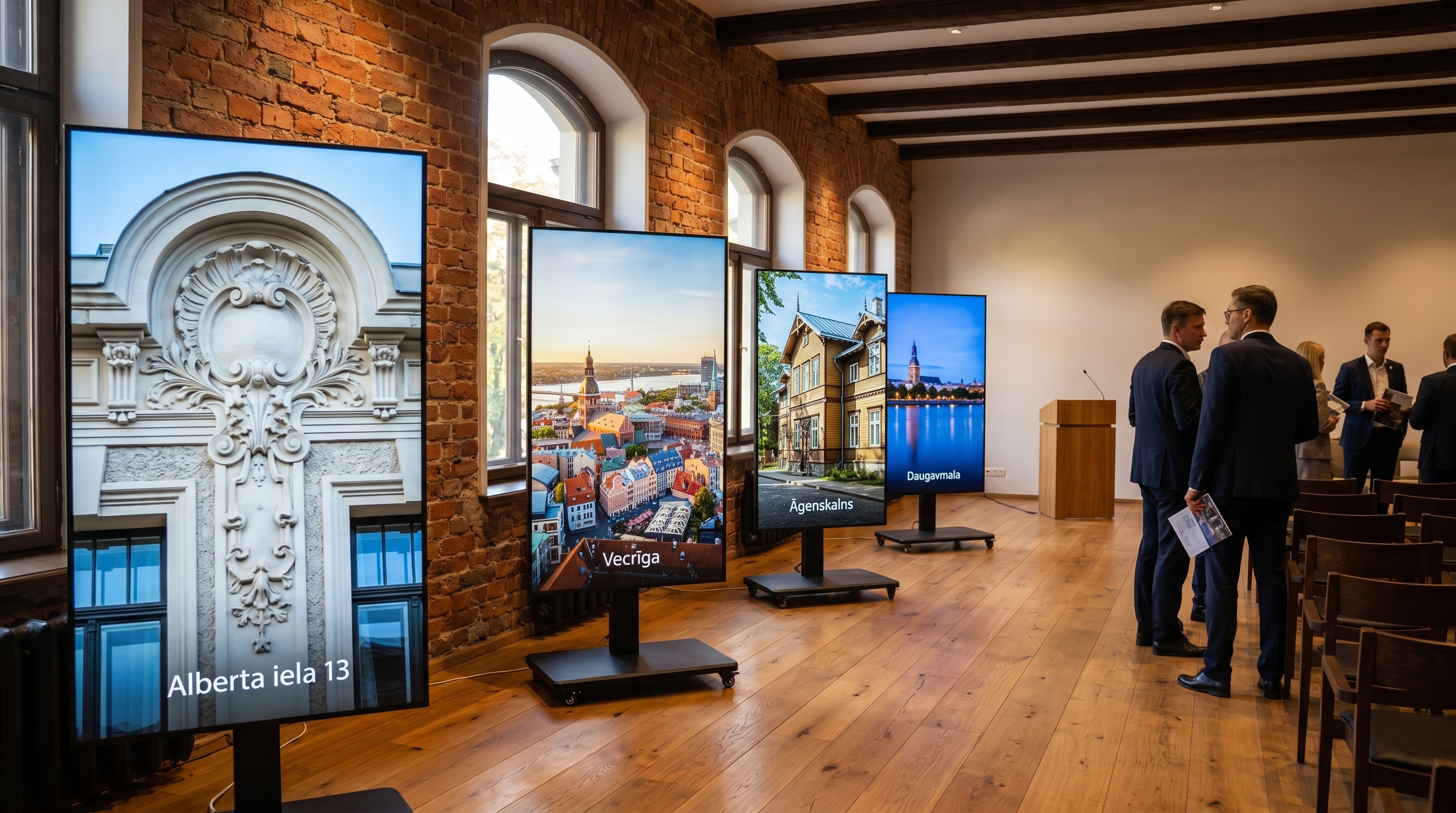
What to show on a digital screen
Deciding what to show comes before any talk of formats. The strongest content is built around one job per screen, not a wall of information competing for the same glance. If a viewer cannot name what the screen is about after a single pass, there is too much on it. The table later in this guide pairs event types with setups; first, a few ideas that consistently earn their place.
At events, stages and receptions
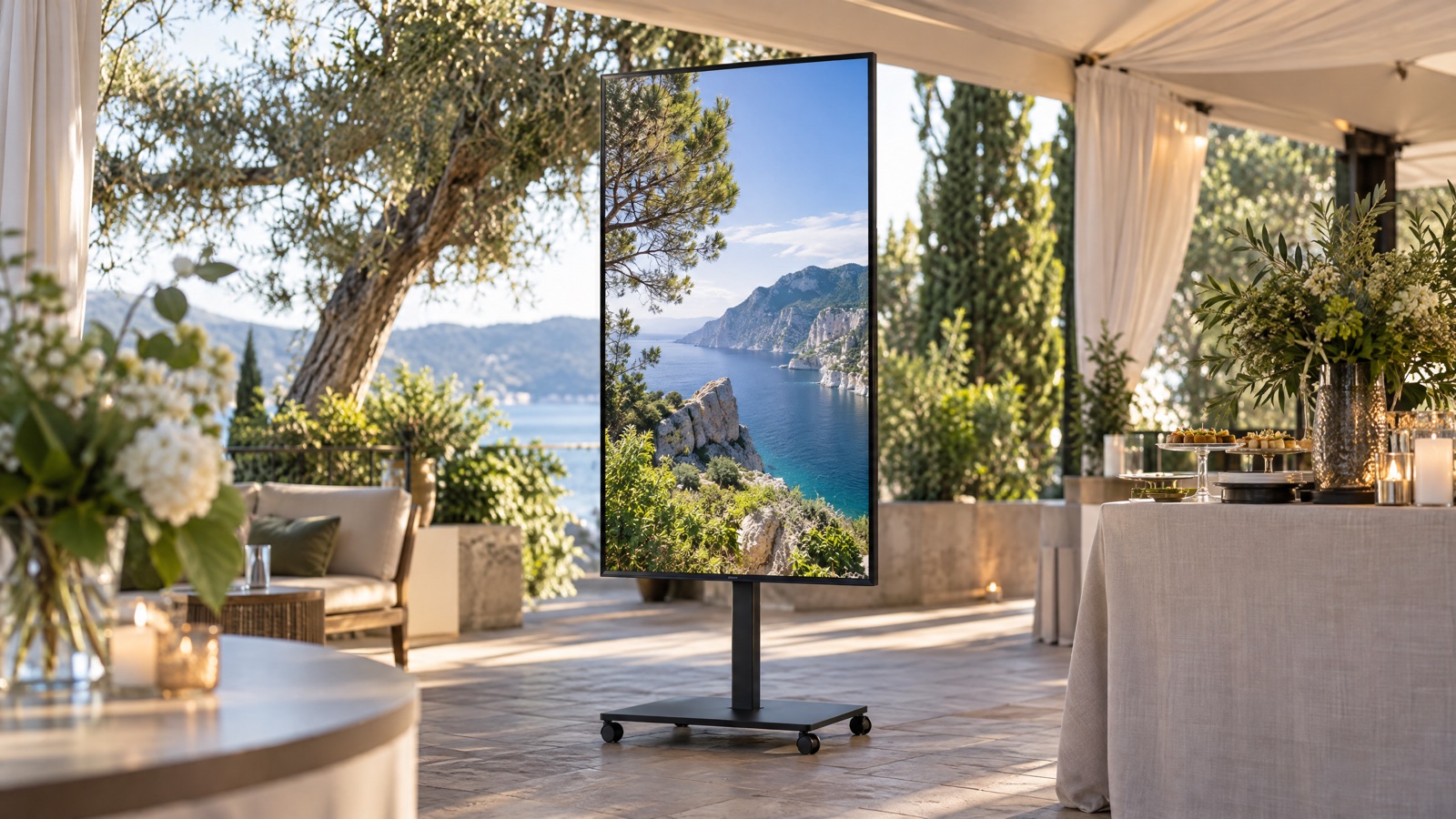
Business events reward clarity. An entrance screen that cycles the agenda, the room plan and the wifi code answers the questions people ask most, while a stage-side screen carries speaker slides and a rolling sponsor reel between sessions. Welcome messages, a countdown to the next talk, and a simple branded holding slide all fill quiet moments without anyone touching the screen.
In retail, pop-ups and windows
For a pop-up shop or a shop window, motion is the hook. A short looping video of the product, a rotating set of offers, or a single bold price does more than any printed poster — and because the panel runs at 3000 nits, it stays crisp behind glass in daylight where an ordinary TV would wash out. Keep it to one message at a time and let the loop repeat all day.
File formats and specs for your digital screen content
This is the part worth getting exactly right. Every VACANT screen is a 65-inch 4K panel run in 9:16 portrait, so native content should be authored upright. The table below is the short brief you can hand to any designer or video editor.
| Setting | What to use | Why |
|---|---|---|
| Orientation | Portrait 9:16 | Matches the upright screen edge to edge, no black bars |
| Resolution | 4K — 2160×3840 px upright | The panel is 3840×2160; a native 4K file stays pin-sharp |
| Video format | MP4, H.264 codec | Plays natively on the Android 11 player, small file size |
| Image format | PNG or JPG | PNG for text and logos, JPG for photos |
| Frame rate | 25 or 30 fps | Smooth motion without oversized files |
| Safe margin | ~5% inset from edges | Keeps key text and logos clear of the bezel |
Stick to these and your content for a digital screen will play first time, from any of the three sources below, with no conversion or surprises on site.
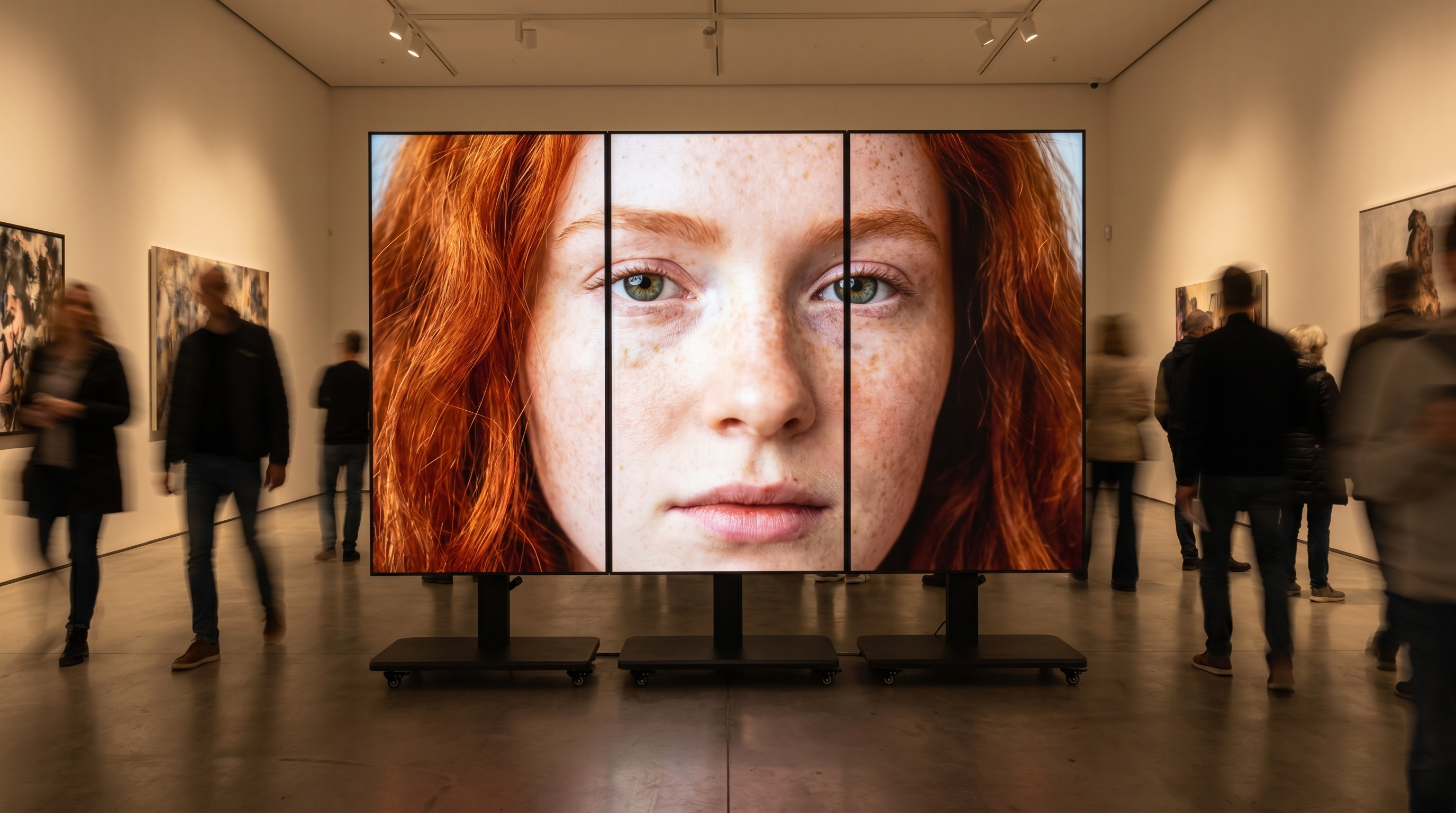
Video, images, or both
Both work, so the choice is about effort and attention. Motion holds the eye longer, which is why a short looping video is the default for unattended displays and shop windows. A clean sequence of still images is faster to produce, easy to update, and perfectly suited to agendas, menus, price lists and sponsor logos. Many events use both: a looping brand video as the hero, with a few stills dropped in for the practical information. Keep each loop short — fifteen to thirty seconds is plenty — so the full message comes round again quickly for the next person walking past, and hold each still on screen long enough to read comfortably, roughly five to eight seconds. Whatever you choose, build it as a loop so it repeats all day without anyone intervening.
Three ways to load content: USB, HDMI and the cloud CMS
Each screen runs Android 11 with a built-in media player and a cloud CMS, and all three ways to drive it are included in the rental.
- USB stick — copy your MP4 or image files onto a stick, plug it into the screen, and the player loops them. This is the most reliable option for unattended displays: nothing to crash, nothing to reconnect.
- HDMI from a laptop — mirror a laptop over HDMI for live presentations, a slideshow you control, or anything coming from presentation software in real time.
- Cloud CMS — push content remotely over the internet. This is the one to use when you want to update several screens at once, or change what is showing during a multi-day event without being in the room.
Which one to pick
For a fixed loop that must never fail, use USB. For a talk where someone is clicking through slides, use HDMI. For a multi-screen stand or a window you will refresh from the office, use the cloud CMS. There is no wrong answer, and you can switch between them during the event.
Design tips for portrait 9:16 content
Readable content for a digital screen follows a few rules that hold for almost any event. Design for the glance, not the read.
- Big, bold text — short phrases, not sentences; someone walking past reads a screen in two or three seconds.
- One idea per frame — a single offer, one headline, one call to action, rather than a crowded slide.
- High-contrast colours — the 3000-nit brightness lets you use light, punchy tones even in a bright hall or a sunlit window.
- Motion in the first seconds — an animated intro catches the eye far faster than a static frame in a crowded room.
- Consistent style across screens — if you are building a wall, match colours, rhythm and timing so the screens read as one image.
- Respect the safe margin — keep logos and key text about 5% in from the edges so nothing is lost to the bezel.
Prepare everything in advance and test it on the screen before doors open — load the USB, check the HDMI feed, or preview the cloud playlist. If you want a partner who handles both the hardware and the practical side of getting your content for a digital screen running, VACANT supplies the screens, the stand and the plug-and-play playback so you can focus on the message.
Conclusion
Content for a digital screen is half the result, and it is the half you control completely. Build it in portrait 9:16 at 4K, export MP4 for video and PNG or JPG for stills, keep the text big and the contrast high, and load it from USB, HDMI or the cloud — and a VACANT screen will carry your message sharply from across any room in Riga.
Ready to put something striking on screen? Start your content for a digital screen today — message us on WhatsApp at +44 7397 311 066 or email hello@vacantads.com with your dates and the number of screens, and we will get you set up.
Frequently asked questions
What resolution and aspect ratio should content for a digital screen use?+
Design in portrait 9:16 at 4K, which is 2160×3840 pixels for an upright screen. Every VACANT screen is a 65-inch 4K panel at 3840×2160 run in portrait, so a native 9:16 file fills it edge to edge with no black bars or stretching.
What file formats can I play on the screen?+
Use MP4 with H.264 video for motion and PNG or JPG for still images. The screens run Android 11 with a built-in media player and a cloud CMS, so standard MP4, PNG and JPG files play from a USB stick, over HDMI or pushed remotely — no special software needed.
Should I use video or still images?+
Both work; motion simply holds attention longer. A short looping video is ideal for unattended displays and shop windows, while a clean sequence of high-contrast stills is easier to produce and perfect for agendas, menus and sponsor logos.
How do I get my content onto the screen?+
Three ways, all included: copy files to a USB stick and plug it in, mirror a laptop over HDMI for live presentations, or push content remotely through the cloud CMS on the screen's Android 11 player.
How big should the text be?+
Big enough to read in a few seconds from across the room. Use short phrases rather than sentences, keep one idea per frame, and rely on high-contrast colours — the 3000-nit brightness means light tones stay legible even in a bright hall or a sunlit window.
Can I run the same content across several screens?+
Yes. Up to 10 identical VCNT SL1 screens are available, and because they share the same resolution, brightness and bezel, one design file plays consistently across all of them. For a video wall, match colours and timing so the screens read as one. Message us on WhatsApp at +44 7397 311 066 for help.
Need screens for your event?
65-inch 4K screens from €30/day. Transparent pricing, everything included, easy pickup in Riga.
See pricing & book →Designer on the VACANT team. Creates visual content for digital screens and helps brands build striking campaigns on large-format displays.